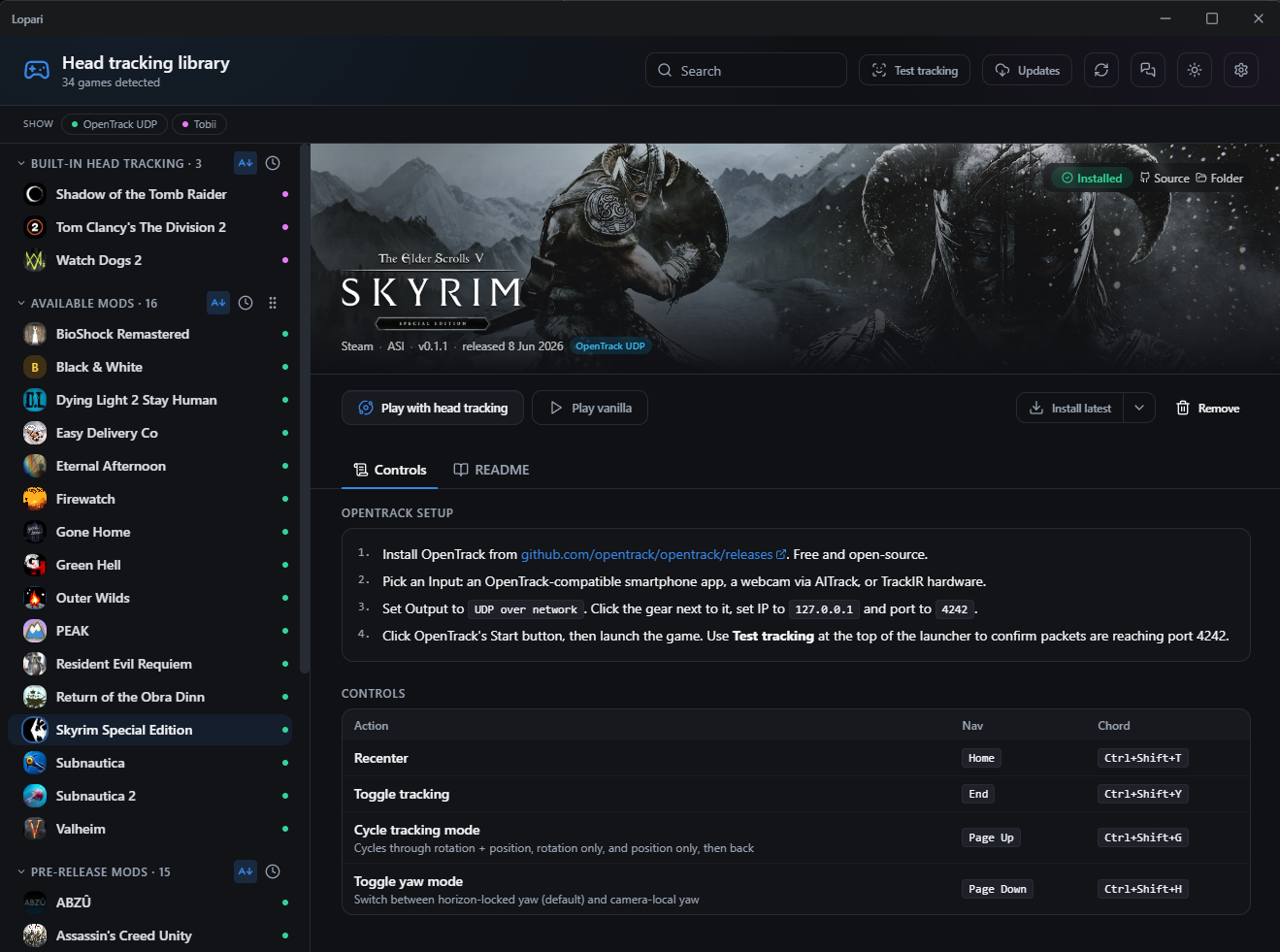
Lopari

A desktop game launcher.

Lopari shows you the games on your PC that support head tracking, and launches any of them in one click.

It reads the libraries you already have on Steam, GOG, Epic, EA, Ubisoft, and Xbox, keeps the head-tracking-capable titles, and skips the ones that aren't.


What it does, in plain terms

Lopari is a launcher first. You open it, you see your library. The library is filtered: only games installed on this machine that can be played with head tracking are shown. Everything else stays out of the way.

For most titles in that filtered list, head tracking is something the developer shipped. Elite Dangerous, DCS World, Microsoft Flight Simulator, iRacing, Assetto Corsa, Star Citizen, IL-2, X-Plane — all of these read your tracker out of the box. Lopari surfaces the connection details in one place, instead of you hunting through each game's options menu.

For a handful of titles where head tracking isn't shipped natively, a community mod exists that adds it. Lopari installs that mod for you on first launch, and uninstalls it again when you want vanilla back. Same download and install process you'd do by hand, just one click away.


How to use it

  1. 1

    Install Lopari. Open it. It scans your machine and lists the head-tracking-capable games you actually own. No sign-in.

  2. 2

    Point a tracker at your face. A webcam running OpenTrack on the same PC, or a phone running a tracking app on a tripod across the room. Anything that speaks the OpenTrack UDP protocol.

  3. 3

    Click Play. The launcher hands off to Steam (or GOG, Epic, etc.) the same way the storefront would, and the game opens. For titles that need a community mod to enable tracking, Lopari installs that mod first, and uninstalls it later from the same place.


Get it

Lopari is in public beta. Windows 10 and Windows 11 only — macOS and Linux are not supported.

Heads-up: the installer is not yet code-signed, so Windows will warn you about an unrecognised publisher. Nothing is wrong; it's expected for a small independent project that hasn't paid for a certificate yet. The steps below tell you exactly what to click. A SHA256 digest is also published alongside every release so you can verify the bundle independently if you want to.

No release published yet. Watch the releases page or check back here.

Installing on Windows

  1. Download the installer.

    Grab the -setup.exe from the latest release.

  2. If your browser warns about the download, keep it.

    Chrome and Edge sometimes label unsigned downloads as "uncommon" or "may harm your device." Click the dropdown next to the warning and choose Keep (Chrome) or Keep anyway (Edge).

  3. Unblock the file.

    Windows tags every file downloaded from the internet so it can refuse to run it later. Right-click the downloaded .exeProperties → at the bottom of the General tab, tick UnblockOK. Some Windows installs skip straight to step 4 without needing this; do it anyway, it doesn't hurt.

  4. Run the installer.

    Double-click the .exe. SmartScreen will show a blue full-screen warning that says Windows protected your PC and lists the publisher as Unknown. Click More info, then Run anyway. The installer takes a few seconds and Lopari appears in your Start menu.

  5. If Windows Defender quarantines it.

    Occasionally Defender flags unsigned Tauri installers heuristically. Open Windows SecurityVirus & threat protectionProtection history, find the Lopari entry, and choose Restore. Then re-run step 4. The SHA256 published with each release is your independent verification that the bundle matches what was built.

When Lopari is code-signed, steps 2, 3, and 4 will go away.